
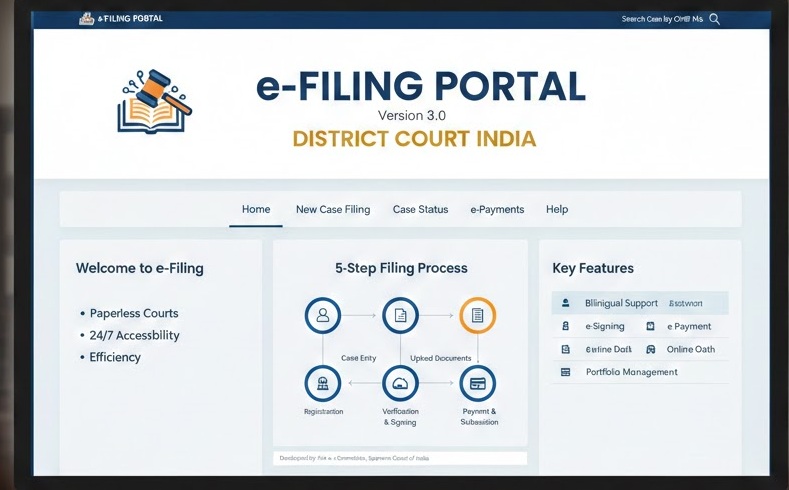
e-Filing Portal Explain Every things District Court India
Introduction:
What is e-Filing and Why It Matters
The Indian judicial system has undergone a massive digital transformation over the past decade. Gone are the days when filing a court case meant standing in long queues at filing counters, carrying heavy bundles of paper documents, and making multiple trips to court complexes just to submit a petition. Today, the e-Filing portal (accessible at https://filing.ecourts.gov.in/pdedev/ serves as a digital gateway that allows lawyers, litigants, and government officials to file cases, applications, and documents online from anywhere with an internet connection.
This system isn’t just about convenience it’s about democratizing access to justice. A lawyer sitting in a small town can now file a case in the Delhi High Court without traveling hundreds of kilometers. A litigant representing themselves can submit their petition at midnight if that’s when they find the time. The e-Filing system operates 24 hours a day, seven days a week, breaking down the barriers of distance and time that once made court access difficult for many Indians.
The portal handles everything from initial case filings to subsequent applications, document uploads, court fee payments, and even oath administration through video recording. Whether you’re an experienced advocate managing hundreds of cases or a first-time litigant trying to understand the basics, this guide will walk you through every aspect of the system in plain, understandable language.
Understanding the e-Filing Portal: Who Can Use It
When you first visit the e-Filing portal, you’ll notice that the system is designed to accommodate different types of users. The portal recognizes four primary categories of filers, each with slightly different access levels and requirements:
1. Advocates and Lawyers
This is the most common user type. Registered advocates can file new cases, submit applications in existing matters, upload vakalatnamas (documents authorizing them to represent clients), and manage their entire case portfolio through the dashboard. Advocates typically need to verify their registration with the Bar Council, and some courts require them to use Digital Signature Certificates (DSC) for added security.
2. Litigants in Person
Individuals who wish to file their own cases without hiring a lawyer can register as “Litigant in Person.” While the system allows this, it’s worth noting that court procedures can be complex, and the portal assumes some legal knowledge. Litigants in person may find the process challenging but not impossible—the system provides templates and guides to help navigate the requirements.
3. Government Pleaders and Department Users
Government lawyers and authorized departmental representatives use this category to file cases on behalf of government bodies, public sector undertakings, and statutory authorities.
4. Clerks and Authorized Representatives
Law firm clerks, junior advocates, and authorized representatives can be given access to file documents on behalf of the primary advocate, though the system maintains accountability by tracking who actually submits each document.
Getting Started: Registration and Login Process
Step-by-Step Registration
Before you can file anything, you need to create an account. The registration process is straightforward but requires attention to detail:
Step 1: Visit the Portal Open your browser and go to https://filing.ecourts.gov.in/pdedev/. The homepage displays a map of India—click on your state or select it from the dropdown menu.
Step 2: Select User Type Choose whether you’re registering as an Advocate, Litigant, Government Pleader, or Clerk. Each category requires different verification documents.
Step 3: Fill Basic Details Enter your full name exactly as it appears on your official identity documents, your mobile number, email address, and present address. Important: Use a mobile number and email that you have permanent access to, as all future communications and OTPs will go to these contacts.
Step 4: OTP Verification The system sends a One-Time Password (OTP) to both your mobile number and email address. Enter these OTPs promptly—they typically expire within 15 minutes.
Step 5: Create Login Credentials Set a username and strong password. The password should include uppercase and lowercase letters, numbers, and special characters for security.
Step 6: Complete Profile After initial registration, log in and complete your profile by adding professional details, uploading a photograph, and providing any additional information required for your user type.
For Advocates: Special Registration Requirement in Delhi
If you’re an advocate planning to file cases in Delhi courts, there’s an additional step. Delhi District Courts require advocates to first register in the Court Information System (CIS) before they can use the e-Filing portal. If you encounter an error saying you’re not registered in CIS, visit the Delhi District Court website and complete the CIS registration first. This process usually takes 2-3 working days to activate across all Delhi court establishments
.
The Dashboard: Your Command Center
Once logged in, you’ll see the Dashboard the nerve center of your e-Filing activities. The dashboard is divided into several sections that help you track and manage your work:
My e-Filing Status
This section shows real-time updates on all your filing activities:
-
Drafts: Cases you’re preparing but haven’t submitted yet
-
Pending Acceptance: Files submitted but awaiting administrative approval
-
Not Accepted: Submissions rejected for technical reasons
-
Deficit Court Fees: Cases where additional payment is required
-
Pending Scrutiny: Files under review by the court registry
-
Defective Cases: Submissions that have objections raised by the registry
My e-Filed Cases
Here you can access:
-
Complete list of all successfully filed cases with their CNR numbers
-
Documents filed in each case
-
Interlocutory Applications (IAs) filed
-
Rejected matters and reasons for rejection
-
Idle or unprocessed files requiring attention
My Partners
Advocates can add colleagues, junior lawyers, or clerks as “partners” to collaborate on cases. This feature allows team members to access and work on shared files while maintaining accountability.
Filing a New Case: The Complete Process
Filing a new case involves several sequential steps. Take your time with each—mistakes at any stage can lead to rejection or delays.
Step 1: Select Court and Jurisdiction
Click on “New Case” and choose whether you’re filing in a High Court or District Court. Then select:
-
State: The state where the court is located
-
District: The judicial district
-
Court Establishment: The specific court complex (e.g., Tis Hazari, Saket, Patiala House in Delhi)
Critical Tip: Double-check your jurisdiction. Filing in the wrong court is a common reason for rejection. If you’re unsure which court has jurisdiction over your matter, consult a lawyer or check the territorial jurisdiction rules applicable to your case type.
Step 2: Select Case Category and Type
Choose between Civil or Criminal matters, then select the specific case type:
-
Civil Suit
-
Writ Petition
-
Appeal
-
Execution Petition
-
Miscellaneous Application (MA)
-
Interlocutory Application (IA)
-
Bail Application
-
Motor Accident Claims Tribunal (MACT) case
The available options depend on the court you’ve selected—different courts handle different types of matters.
Step 3: Enter Party Details
This section requires meticulous attention:
-
Petitioner/Plaintiff Details: Name, age, occupation, address, and contact information
-
Respondent/Defendant Details: Complete details of the opposite party
-
Additional Parties: If there are multiple petitioners or respondents, add them all here
Important: Ensure names match exactly with supporting identity documents. Discrepancies here often lead to registry objections.
Step 4: Advocate Details
If you’re an advocate filing for a client, enter your enrollment number and details. The system will verify your Bar Council registration. For litigants in person, this section can be skipped or filled with “Self” as the advocate.
Step 5: Case Information
Provide:
-
Cause of Action: Brief description of what led to the dispute
-
Date of Cause of Action: When the incident or dispute occurred
-
Relief Claimed: What you’re asking the court to order
-
Valuation: The monetary value of the suit (affects court fees)
-
Act and Section: The specific laws under which you’re filing
Step 6: Upload Documents
This is where most first-time filers face challenges. The system requires documents in PDF/A format (Archival PDF) with OCR (Optical Character Recognition) enabled. This means:
-
Documents must be searchable, not just scanned images
-
File size should typically not exceed 50 MB per document
-
Each document must be clearly labeled and bookmarked
Required Documents Usually Include:
-
Main petition or plaint
-
Affidavit in support
-
Vakalatnama (if represented by an advocate)
-
Supporting annexures and evidence
-
Index of documents
Scanning Tips:
-
Use 300 DPI resolution for clarity
-
Scan in black and white unless color is essential
-
Ensure all pages are legible and properly oriented
-
Use PDF/A format, not standard PDF
Step 7: Pay Court Fees Online
The system calculates court fees based on your case valuation and type. Payment can be made through:
-
Net banking
-
Debit/Credit cards
-
UPI
-
Various state-specific payment gateways like GRAS, e-GRAS, JeGRAS, or HimKosh depending on your state
After payment, save the receipt—you’ll need the transaction details for your records.
Step 8: e-Sign and Verify
Before final submission, you must e-sign the documents. This can be done through:
-
Aadhaar-based e-Sign: OTP sent to your Aadhaar-linked mobile
-
Digital Signature Certificate (DSC): USB token-based signature for advocates
-
Video Recording of Oath: For certain affidavits, you may need to record a video oath online
Step 9: Final Review and Submit
Review every detail carefully. Once submitted, the system generates an e-Filing Number—your temporary reference until the court assigns a permanent case number. Download and save the acknowledgment receipt immediately.
| Video Title | Description | Link |
|---|---|---|
| e-Filing Registration Tutorial | Official tutorial covering new user registration, OTP verification, and profile setup for advocates and litigants on the e-Filing portal | Watch Here |
| How to File a New Case Online | Step-by-step guide on selecting court jurisdiction, entering party details, and uploading documents in PDF/A format with OCR | Watch Here |
| e-Filing Dashboard Navigation | Explains the “My e-Filing Status” section, tracking drafts, pending acceptance, defective cases, and portfolio management | Watch Here |
| Document Scanning & Upload Guide | Technical tutorial on creating PDF/A files, OCR enabling, bookmarking, and meeting file size requirements for court submissions | Watch Here |
| Online Court Fee Payment Process | Demonstrates payment through net banking, UPI, and state-specific gateways like GRAS/e-GRAS with receipt generation | Watch Here |
| e-Sign & Digital Signature Tutorial | Shows Aadhaar-based e-Sign, DSC token usage, and video oath recording for affidavit verification | Watch Here |
| Clearing Defects in e-Filed Cases | Explains how to read defect notes, cure objections, resubmit corrected documents, and track status updates | Watch Here |
| Case Status Tracking via eCourts | Guide to using services.ecourts.gov.in to check case status by CNR number, party name, or advocate name | Watch Here |
| eCourts Mobile App Tutorial | How to download and use the Android/iOS app for case tracking, QR scanning, and SMS-based status updates | Watch Here |
| e-Sewa Kendra Services Explained | Overview of physical help centers for scanning assistance, technical support, and document preparation | Watch Here |
| Virtual Courts & Online Hearings | Guide to vcourts.gov.in for traffic challans, video conferencing hearings, and electronic judgment delivery | Watch Here |
| Password Reset & Account Recovery | Tutorial on recovering forgotten passwords using OTP, Aadhaar, or DSC when locked out of your account | Watch Here |
After Submission: What Happens Next
Scrutiny Process
Your filed case doesn’t go directly to a judge. First, it goes to the Court Registry for scrutiny. Registry officials check:
-
Whether court fees are correctly paid
-
Whether documents are complete and properly formatted
-
Whether jurisdiction is correct
-
Whether all required signatures and verifications are present
Handling Defects
If the registry finds issues, your case status changes to “Defective.” You’ll receive an email and SMS notification listing the specific objections. Common defects include:
-
Blurry or illegible documents
-
Missing pages in annexures
-
Incorrect court fee calculation
-
Jurisdictional errors
-
Mismatched party names
How to Clear Defects:
-
Log into your dashboard and click on “Defective Cases”
-
Read the defect note carefully
-
Correct the issues (re-scan documents, pay additional fees, etc.)
-
Click “Cure Defects” and resubmit
-
The registry will re-examine your filing
You typically have a limited time window to cure defects—usually 7-15 days depending on the court rules. Missing this deadline can result in your filing being treated as invalid
Registration and Case Number Allotment
Once defects are cleared (or if no defects were found), the registry registers your case and allots a CNR Number (Case Number Record). This 16-digit alphanumeric code is your case’s permanent identity. From this point, you can track your case status using the CNR number.
Important: After online registration, you must submit the original physical copies of your petition and documents to the court registry before the first hearing date. The online filing gets your case into the system, but courts still require physical files for their records and for judges to review during hearings.
Filing Applications in Existing Cases
Once a case is registered and you have the CNR number, you can file various applications without visiting court:
Types of Applications You Can File
-
Interlocutory Applications (IAs) for interim relief
-
Applications for exemption from filing certain documents
-
Applications for adjournment
-
Written statements and replies
-
Additional documents and evidence
-
Vakalatnama changes
Process for Filing Applications
The process is similar to new case filing but simpler:
-
Select “Miscellaneous Document” or “Application in Pending Case” from the dashboard
-
Enter the CNR number of your existing case
-
Select the type of application
-
Upload the application document and supporting papers
-
Pay any applicable fees
-
e-Sign and submit
These applications are also subject to registry scrutiny, though the process is usually faster than initial case registration.
Managing Your Cases: The Portfolio System
The e-Filing portal offers robust portfolio management features that help lawyers and litigants stay organized:
My Cases Section
This digital diary allows you to:
-
Save and track all your cases in one place
-
Receive automatic updates when case status changes
-
View cause lists (daily court schedules) to know when your case is listed
-
Access case history and previous orders
-
Download judgments and final orders
Calendar Integration
The system provides a calendar view showing upcoming hearing dates across all your cases, helping you manage your court appearances efficiently.
Case Status Tracking
You can check real-time status using:
-
CNR Number: The 16-digit unique identifier
-
Case Number: The court’s registration number
-
Filing Number: Your initial e-filing reference
-
Party Name: Search by petitioner or respondent name
-
Advocate Name: Search by lawyer’s name
Essential Linked Services and Portals
The e-Filing portal doesn’t work in isolation. Several other portals and services are integrated or linked to provide comprehensive court services:
1. eCourts Services Portal (services.ecourts.gov.in)
This is the public-facing portal where anyone can check case status without logging in. Features include:
-
Case status search by CNR number, case number, party name, or advocate name
-
Access to daily orders and judgments
-
Cause list viewing
-
Court complex locator
How to Check Case Status:
-
Enter your 16-digit CNR number (no spaces or hyphens)
-
Click Search to view current status and complete case history
-
If you don’t know the CNR, use the Case Status icon to search by other criteria
2. eCourts Services Mobile App
Available for Android and iOS, this free app puts court services in your pocket:
-
Check case status on the go
-
Scan QR codes to instantly access case details
-
Save your cases in “My Cases” for quick access
-
View cause lists and get hearing date alerts
-
Access even without internet using SMS service (send “ECOURTS [CNR]” to 9766899899)
3. Virtual Courts (vcourts.gov.in)
For certain case types, especially traffic challans and petty offenses, Virtual Courts allow complete case resolution online without physical court visits. You can:
-
Pay fines online
-
Contest charges through video conferencing
-
Receive judgments electronically
4. e-Payment Portal (pay.ecourts.gov.in)
Dedicated portal for paying court fees, fines, penalties, and judicial deposits online. Supports multiple payment methods including credit/debit cards, net banking, UPI, and mobile wallets
.
5. e-Sewa Kendras
Physical help centers located in court complexes for those who need assistance with e-Filing. Services include:
-
Help with scanning and document preparation
-
Assistance with e-Filing procedures
-
Digital signature certificate support
-
Case status inquiries
-
Certified copy applications
Common Problems and Practical Solutions
Even with a well-designed system, users encounter issues. Here are common problems and how to solve them:
Problem 1: Login Issues and Forgotten Passwords
Solution: Use the “Forgot Password” link on the login page. You can reset using:
-
OTP sent to your registered mobile and email
-
Aadhaar-based OTP if your Aadhaar is linked
-
Digital Signature Certificate (if registered)
-
Net banking verification (if enabled)
If you’ve lost access to your registered mobile number, visit the e-Sewa Kendra with identity proof to update your contact details
.
Problem 2: Document Upload Failures
Common Causes:
-
File size exceeding limits (usually 50 MB)
-
Incorrect format (must be PDF/A with OCR)
-
Corrupted files or password-protected PDFs
Solution:
-
Compress large files or split them into volumes
-
Re-scan documents at 300 DPI in black and white
-
Ensure PDFs are not password protected
-
Use “Print to PDF” rather than “Save as PDF” for fillable forms
Problem 3: Payment Failures
Solution:
-
Check internet connectivity and try again
-
Use a different payment method
-
If amount is deducted but not reflected, wait 24 hours for auto-reconciliation
-
For persistent issues, contact the e-Sewa Kendra with payment proof
Problem 4: Case Not Showing in Dashboard
Solution:
-
Check all tabs: Drafts, Pending Acceptance, Not Accepted
-
Verify you used the correct login credentials
-
If recently filed, wait 24-48 hours for system updates
-
Contact the specific court’s e-Filing helpdesk
Problem 5: Defects Not Clearing After Correction
Solution:
-
Ensure you’ve clicked “Cure Defects” and not just uploaded corrected documents
-
Check that all requested corrections were made, not just some
-
If defects persist, visit the court registry personally with a printout of the defect note
Contact Information and Help Resources
Delhi District Courts e-Filing Helpline Numbers
| Court Complex | Contact Person | Phone Number |
|---|---|---|
| Tis Hazari Court Complex | Ms. Ragini | 011-23950919 |
| Karkardooma Court Complex | Ms. Poonam | 011-22392256 |
| Saket Court Complex | Ms. Suman | 011-29562525 |
| Patiala House Court Complex | Ms. Monika | 011-23384209 |
| Rohini Court Complex | Ms. Anju | 011-27056900 |
| Dwarka Court Complex | Ms. Neelam | 011-28082111 |
Central e-Sewa Kendra (Tis Hazari): 011-23940621
Email: esk-central@ddc.nic.in
Hours: 9 AM to 5 PM on working days
Email: esk-central@ddc.nic.in
Hours: 9 AM to 5 PM on working days
Delhi High Court e-Filing Support
-
Helpline: 14611 (toll-free)
-
Online Support: Available through Delhi High Court website
National e-Courts Support
-
eCourts Services Portal: https://filing.ecourts.gov.in/pdedev/
-
Mobile App: Available on Google Play Store and Apple App Store
-
SMS Service: Send “ECOURTS [CNR]” to 9766899899 for case status without internet
For Technical Issues
-
Check the “Help” section on the e-Filing portal for video tutorials
-
Download user manuals from the portal’s “Manuals” section
-
Visit your nearest e-Sewa Kendra for hands-on assistance
Important Tips for Successful e-Filing
Before You Start
-
Gather all documents and ensure they’re complete and legible before scanning
-
Check court holidays—while the portal works 24/7, filings made on holidays are treated as filed on the next working day for limitation purposes
-
Calculate court fees correctly using the court’s fee calculator to avoid deficit payment issues
-
Keep digital copies of everything you upload for your records
During Filing
-
Save drafts frequently—the portal allows you to save incomplete filings as drafts
-
Double-check party names—spelling errors here are a major cause of rejection
-
Verify jurisdiction—filing in the wrong court wastes time and money
-
Use the preview function before final submission to catch errors
After Filing
-
Download acknowledgment immediately after submission
-
Note the e-Filing number you’ll need it to track your case
-
Check email and SMS regularly for defect notifications
-
Submit physical copies to the court registry before the first hearing
-
Track case status using the CNR number once allotted
Special Assistance for Those Facing Difficulties
If you’re struggling with the e-Filing process, don’t panic. Several avenues of help are available:
e-Sewa Kendras
Located in most major court complexes, these centers provide free assistance with:
-
Scanning and document preparation
-
Step-by-step filing guidance
-
Technical troubleshooting
-
Digital signature certificate procurement
Legal Aid Services
If you cannot afford a lawyer:
-
District Legal Service Authority (DLSA): Free legal aid for eligible individuals
-
High Court Legal Service Committee: Assistance for High Court matters
-
Supreme Court Legal Service Committee: For matters before the apex court
Professional Help
For complex matters, consider hiring:
-
A practicing advocate for legal representation
-
A document writer or e-Filing service provider (ensure they’re reputable)
-
Law firm clerks who specialize in filing procedures
Conclusion: Embracing Digital Justice
The e-Filing portal represents a significant leap forward in making India’s justice system more accessible, transparent, and efficient. While the learning curve might seem steep initially, especially for those not comfortable with technology, the benefits are substantial. Cases are processed faster, records are maintained more securely, and the need for physical presence at courts is minimized.
However, the system is still evolving. Server issues, complex interface designs, and the digital divide remain challenges. If you encounter persistent problems, don’t hesitate to seek help through the channels provided. The judiciary has established e-Sewa Kendras and helplines specifically to bridge the gap between technology and users.
Remember, while e-Filing handles the submission of your case, justice still ultimately depends on the merits of your matter and the legal process. Use this guide to navigate the technical aspects smoothly, but for legal strategy and advice, consult a qualified lawyer.
For personalized assistance with e-Filing in Delhi, you can contact: 8076580952
This guide is based on the current functioning of the e-Filing portal as of February 2026. Given the rapid pace of digital transformation in the judiciary, some procedures may change. Always refer to the official portal for the most current information.
Key Links Summary:
-
Main e-Filing Portal: https://filing.ecourts.gov.in
-
Case Status Check: https://services.ecourts.gov.in
-
Online Payment: https://pay.ecourts.gov.in
-
Virtual Courts: https://vcourts.gov.in
-
Delhi District Courts: https://delhicourts.nic.in/efiling
For More Update Visit Home Click Here
Disclaimer:
This article is for educational purposes only. Information may change over time; please verify details from official court sources.